Få penger for din gamle mobil
 Lag ditt egetdeksel og gadgets
 Ordrestatus
 Min Club Trendy


iPad 4 Wi-Fi Wireless Communications Antenna Replacement

Send this link via e-mail
|
Tweet |
|
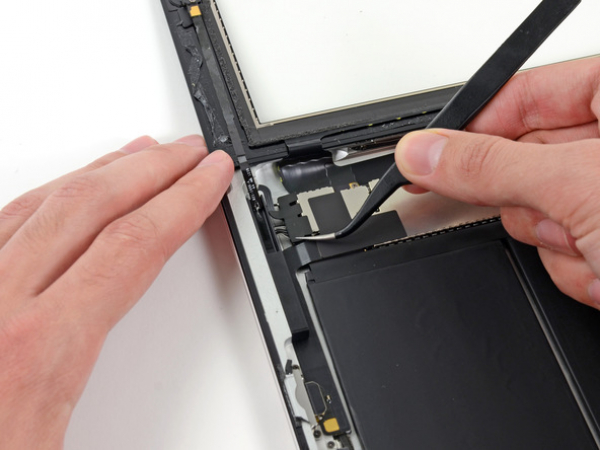


Step 1 - Front Panel Assembly (2)
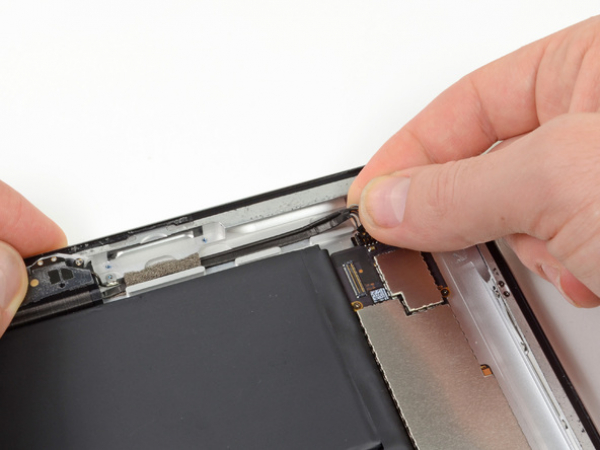
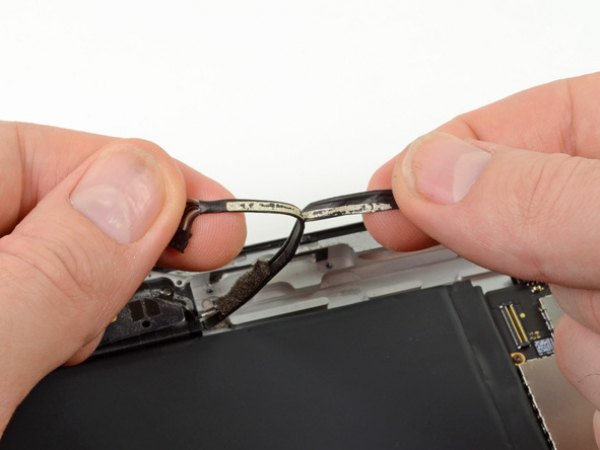
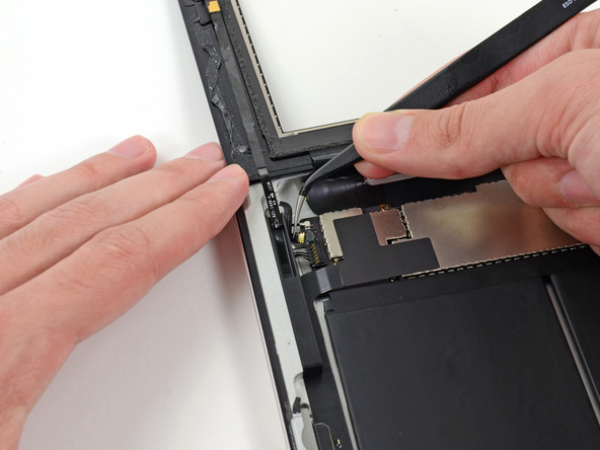
If there's a piece of electrical tape covering the Wi-Fi antenna, speaker cable and the home button ribbon cable, remove it.
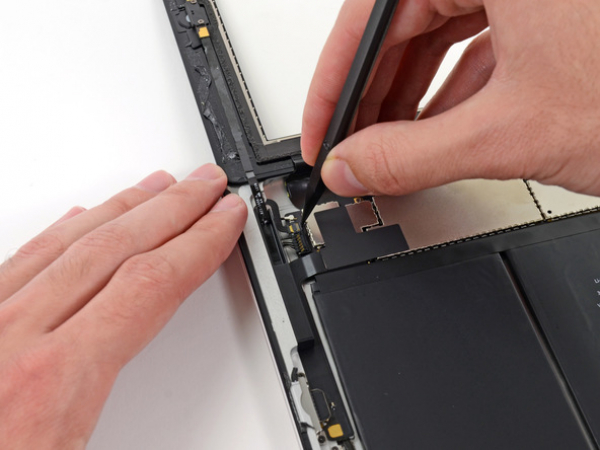




Step 3
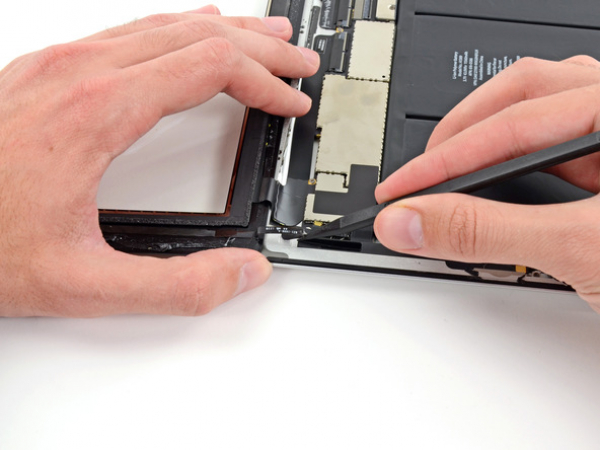
Pull the home button ribbon cable out of its socket on the logic board. Do this with a pair of tweezers.
Step 5
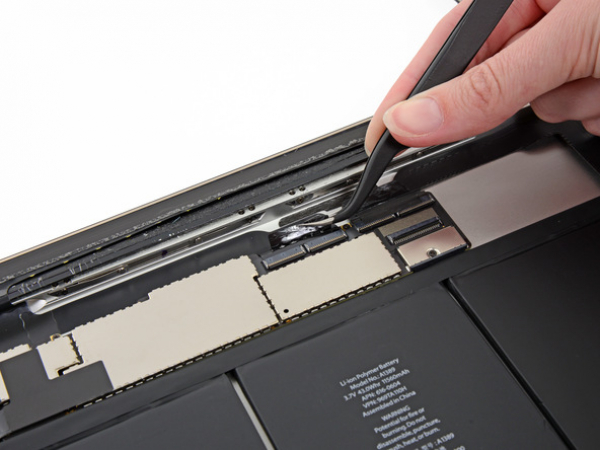
A piece of tape is securing the digitizer ribbon cable to the logic board. Peel it back with a pair of tweezers.


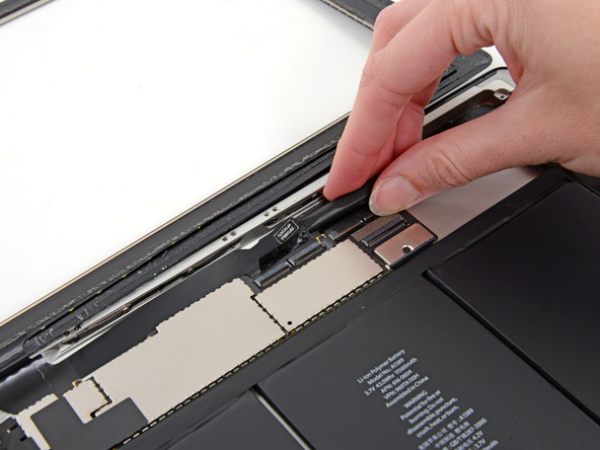


Step 7
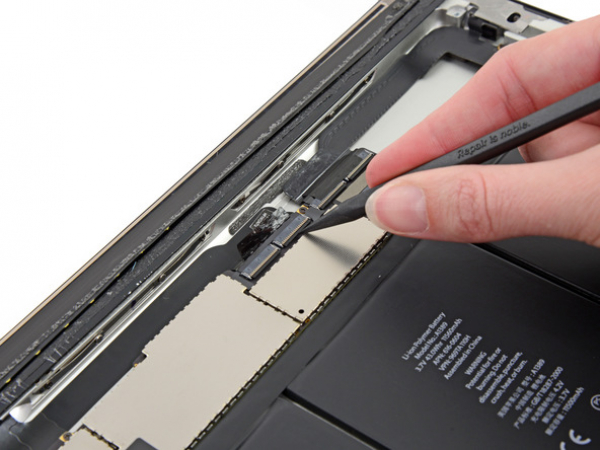
Loosen the adhesive under the digitizer ribbon cable with the flat end of a spudger.
Take out the digitizer ribbon cable out of its sockets on the logic board.
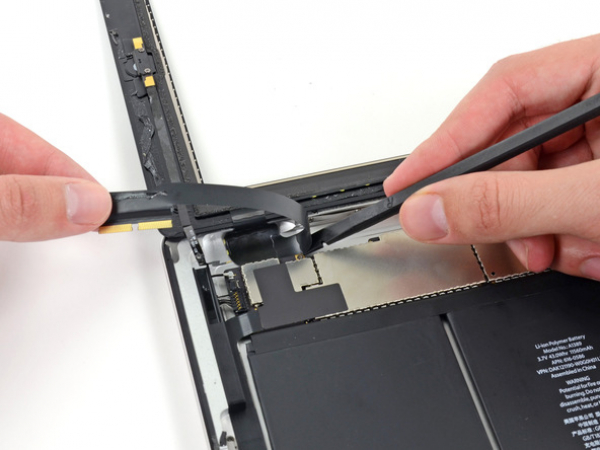


Step 8
Peel back the digitizer ribbon cable. Separate the cable from the adhesive securing it to the rear aluminum case with the flat end of a spudger.
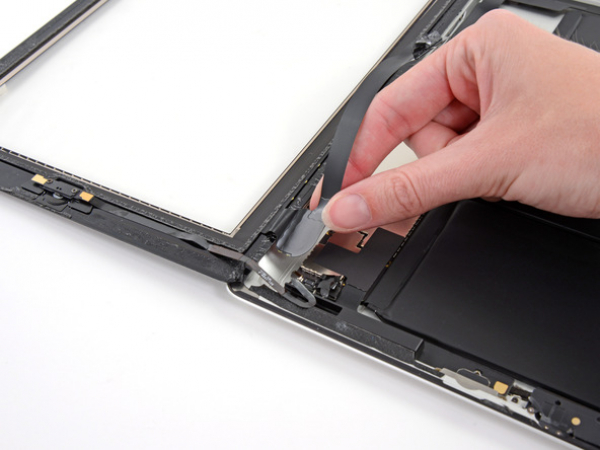
Step 9
Take the digitizer ribbon cable out of its niche in the aluminum frame. Do this with your fingers.
Separate the front panel from the iPad.
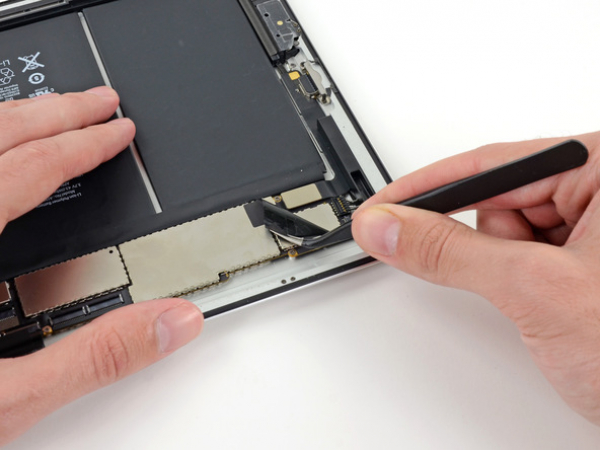
Step 10 - Electrical Tape
Back to top
If there's any electrical tape covering the Lightning connector cable, remove it.


Step 11 - Plastic Spacer
Back to top
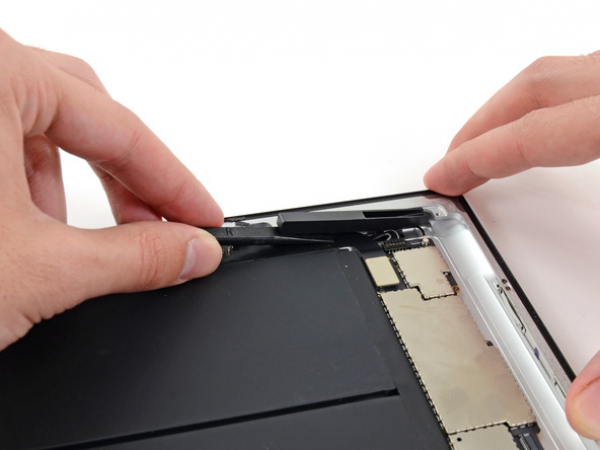
Separate the plastic spacer from the rear case with the flat end of a spudger.
Take the plastic spacer off of your iPad.
Step 12 - Lightning Connector
Back to top
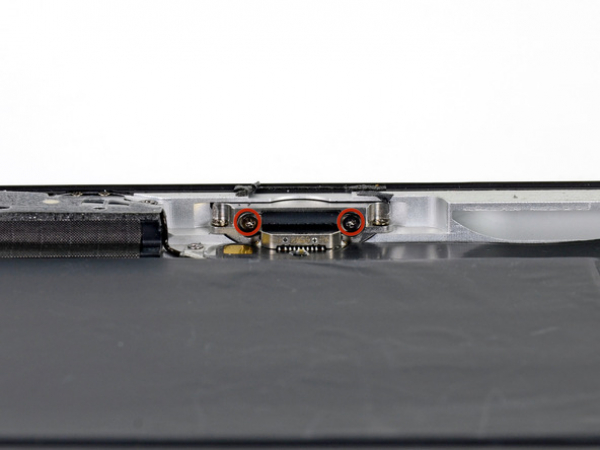
Two 2.9 mm Phillips screws are securing the Lightning connector to the rear case. You need to remove them.


Step 13
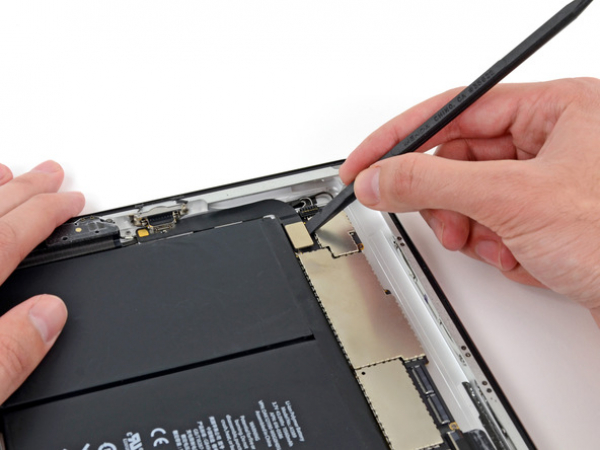
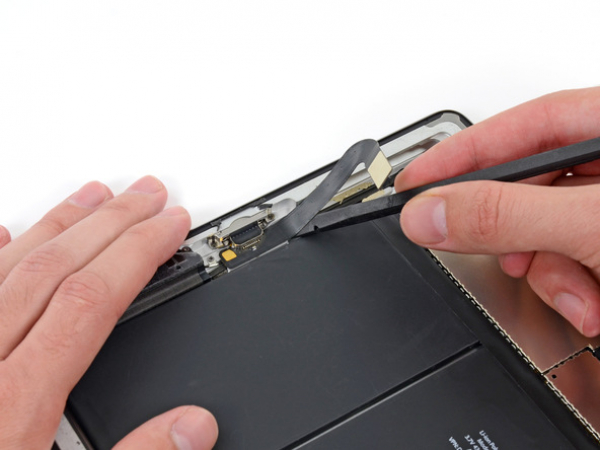
Pry the Lightning connector cable out of its socket on the logic board with the flat end of a spudger.


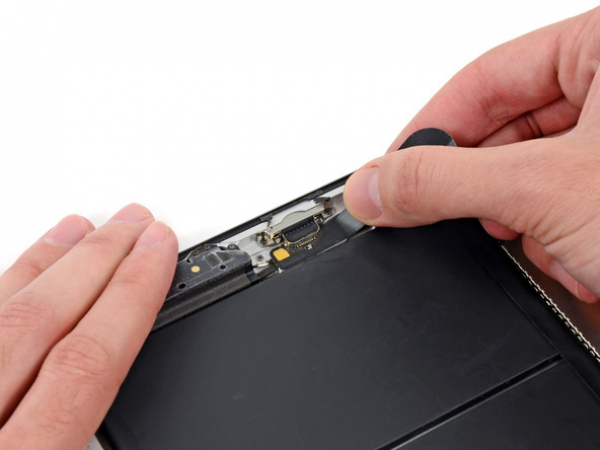


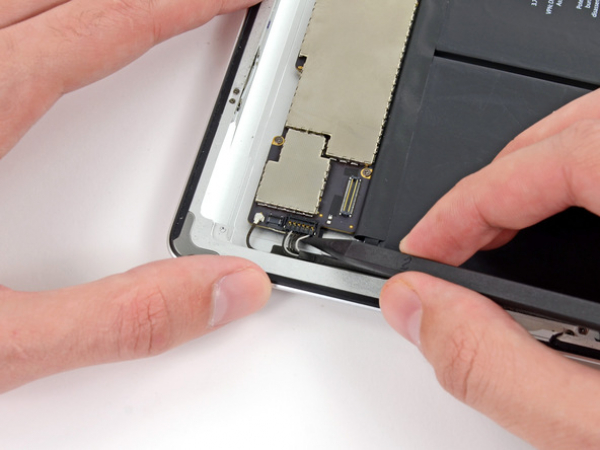


Step 16 - Wi-Fi Antenna
Back to top
Lift the speaker and the Wi-Fi antenna connectors off their respective sockets on the logic board using the tip of a spudger.
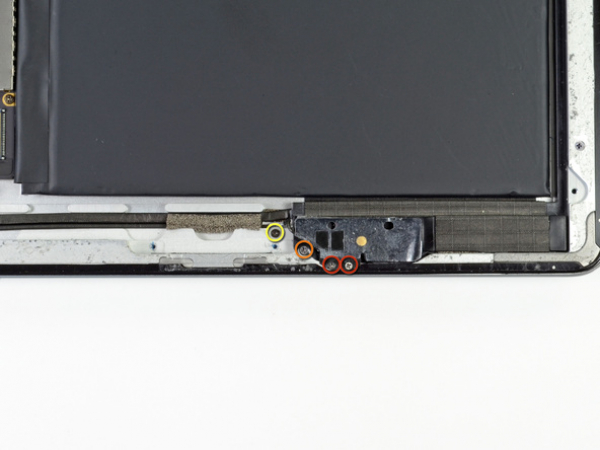
Step 17
There are four screws securing the Wi-Fi antenna to the rear case. You need to remove them.
Two 1.75 mm Phillips screws (small head)
One 4.15 mm Phillips screw
One 1.8 mm Phillips screw (wide head)
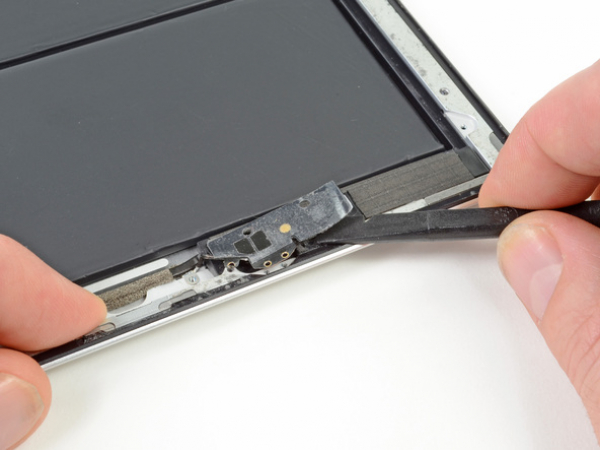


Step 18
Loosen the foam adhesive holding the Wi-Fi antenna and the speaker assembly together using the flat end of a spudger.